
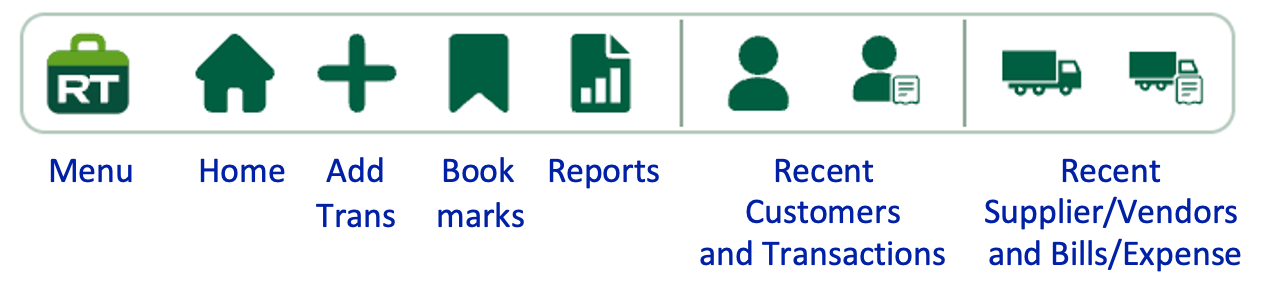
More room to work
Reclaim valuable screen real estate.
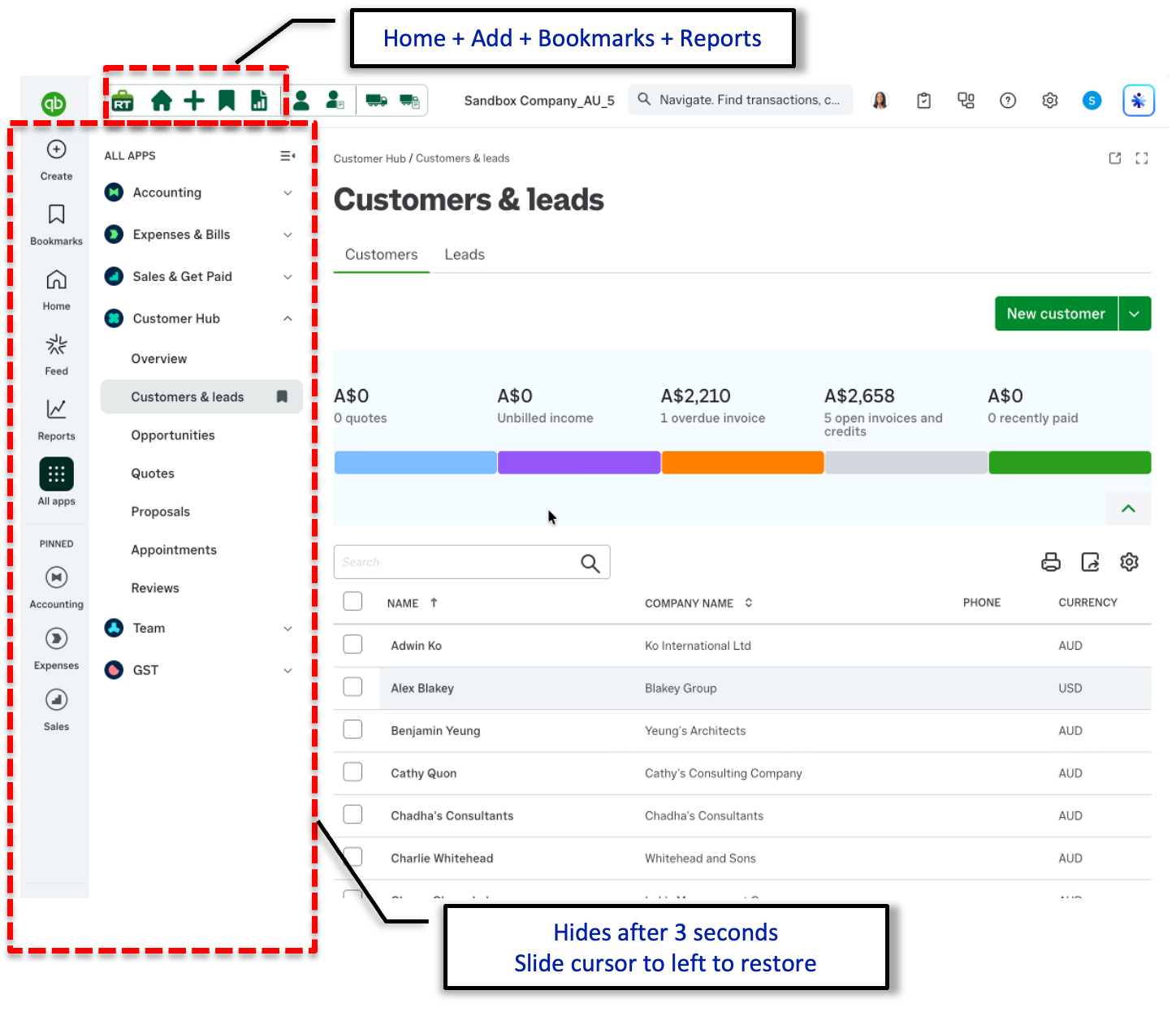
QuickBooks navigation can occupy a large part of the working area. RachelsTools automatically collapses the left-hand menu after three seconds, leaving more space for customers, transactions and reports.
- Keep Home, Add, Bookmarks and Reports available from the compact toolbar.
- Allow the standard QuickBooks menu to hide automatically after three seconds.
- Move the cursor to the left edge whenever you need to restore the full menu.
- Spend more of the screen on the accounting information you are working with.
Shown in QuickBooks
Built into the workspace, not in the way.
In QuickBooks, the compact RachelsTools toolbar sits above the workspace. Home, transaction, bookmark, report, customer and supplier shortcuts remain visible without taking space away from the accounting screen below.

Bookmarks
Keep important pages one click away.
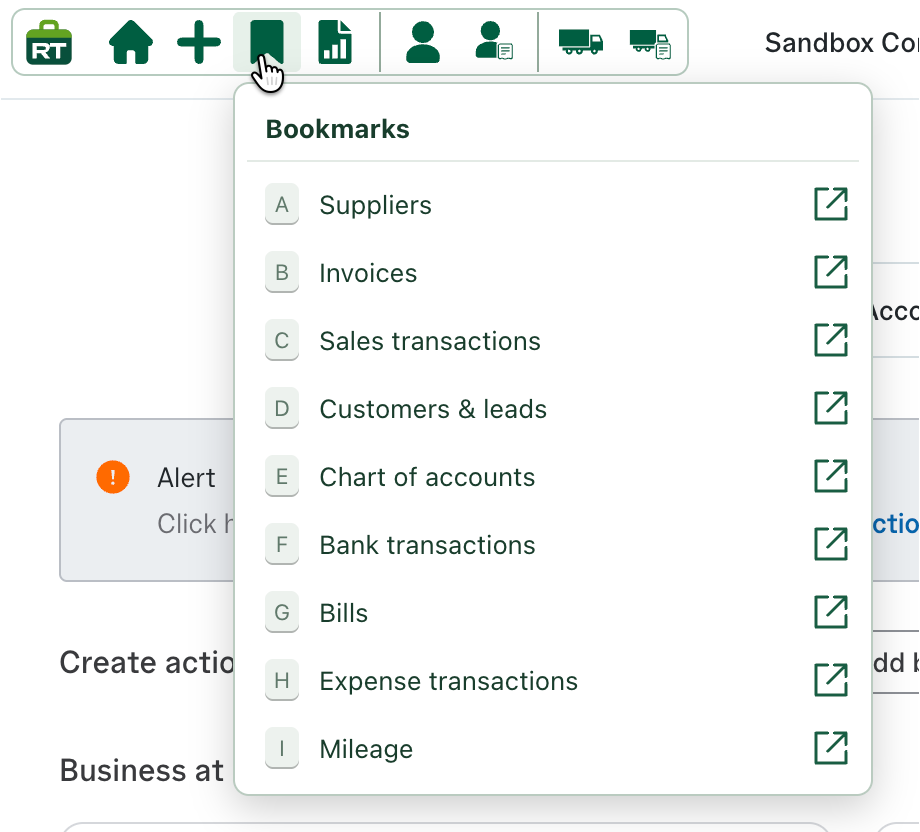
The Bookmarks shortcut provides a compact, personal menu for the accounting pages you return to most often.
- Open frequently used lists without navigating through the full application menu.
- Use the letter shortcuts to recognise and select destinations quickly.
- Open a bookmarked page directly using the icon beside it.
- Keep operational pages—from invoices and bills to mileage and the chart of accounts—together in one menu.
Customisable favourites
Your own menu at the bottom-left of the screen.
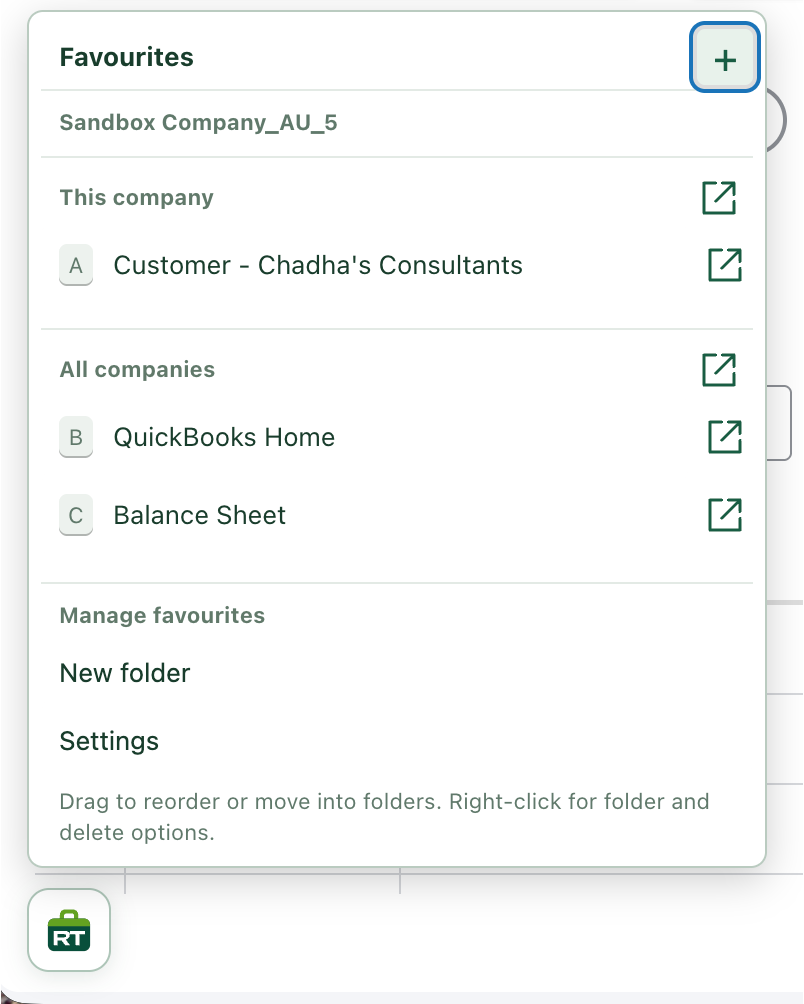
Open the RachelsTools button at the bottom-left to reach a favourites menu arranged around the way you work.
- Keep favourites for the current company separate from links used across all companies.
- Add the customer, report or accounting pages you return to most often.
- Create folders and drag items to reorder or organise them.
- Open favourites directly, with management and settings available from the same menu.
Favourite reports
Open key reports without searching for them again.
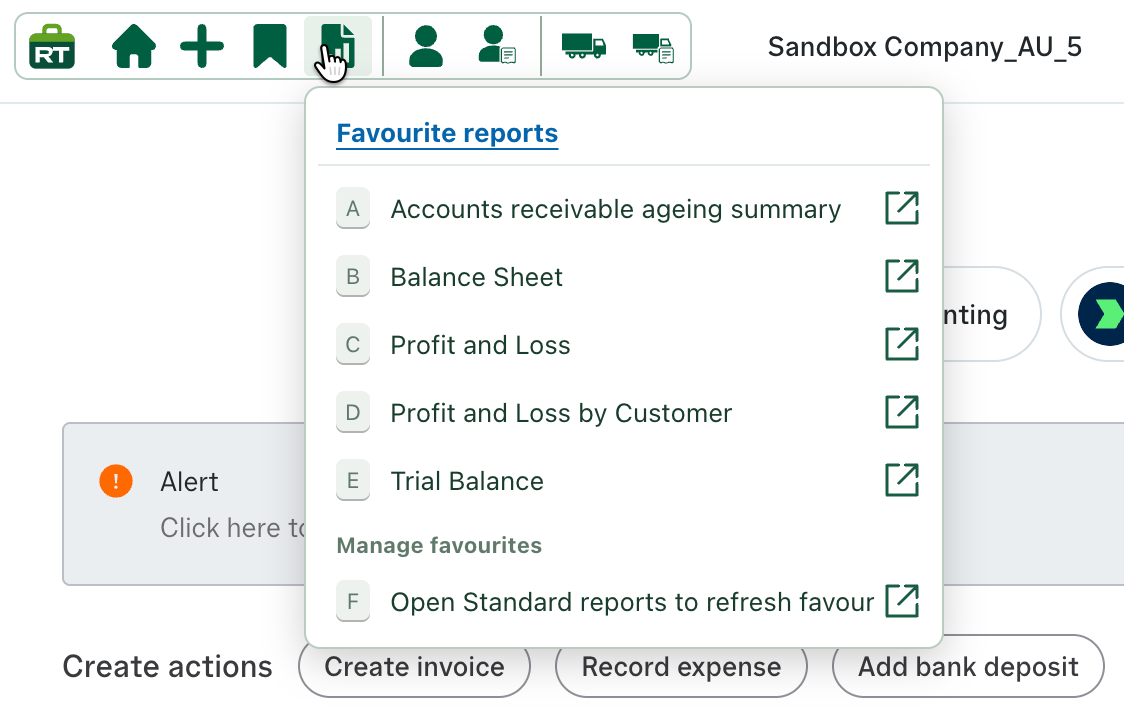
The reports shortcut keeps frequently used financial reports in a concise menu at the top of the accounting screen.
- Open receivables, balance sheet, profit and loss, and trial balance reports directly.
- Keep customer-specific reporting alongside the standard financial reports.
- Use the letter shortcuts for fast selection.
- Refresh or manage the favourite-report list from the same panel.
Recent transactions
Return to recent transactions in one click.
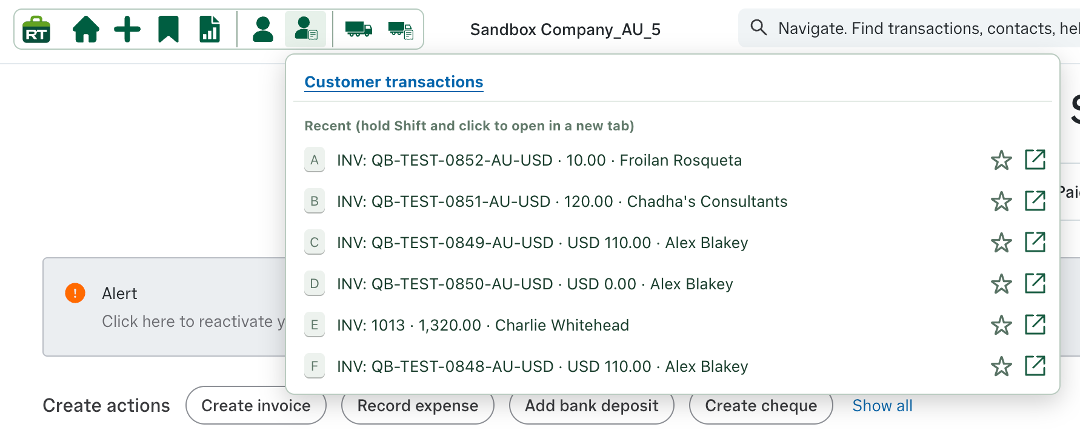
Open the customer-transactions shortcut to see work you have recently accessed, including the transaction reference, value and customer name. The Standard plan shows up to five items in this recent list.
- Click a recent entry to return to it quickly.
- Hold Shift while clicking to open the entry in a new tab.
- Use the star to keep important items among your favourites.
- Use the open icon for a direct route to the transaction.
Recent customers and favourites
Keep key customers above the changing recent list.
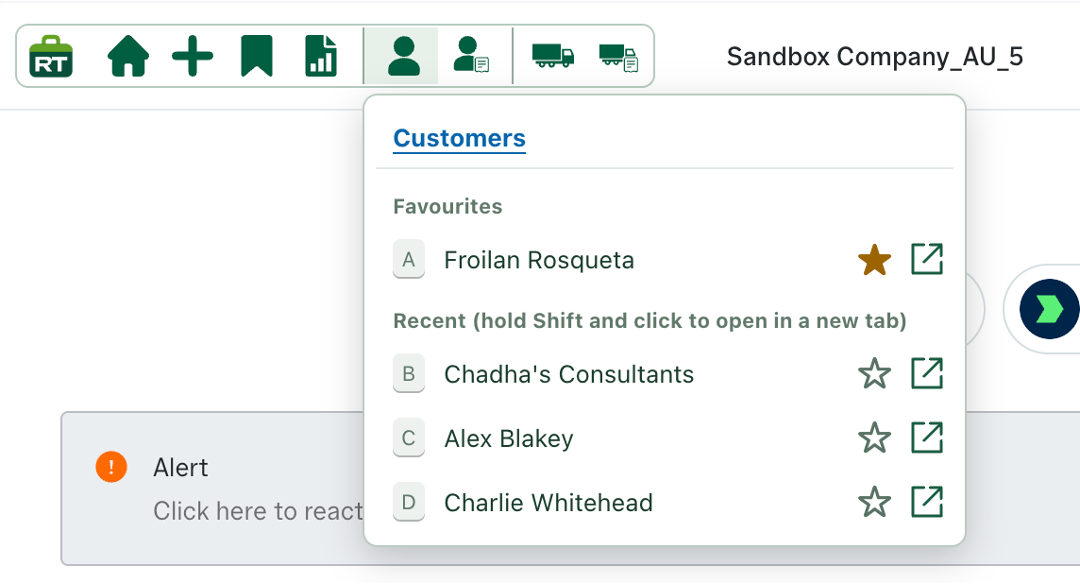
The Customers shortcut separates saved favourites from the contacts you have opened recently. Important customers stay at the top, while the recent list updates as you work. The Standard plan shows up to five recent items.
- Select the star beside a customer to add or remove them from favourites.
- Click a customer to return to their account quickly.
- Hold Shift while clicking to open the customer in a new tab.
- Use the direct-opening icon for an immediate route to the customer record.