A clearer final check
Catch missing information while it is still easy to correct.
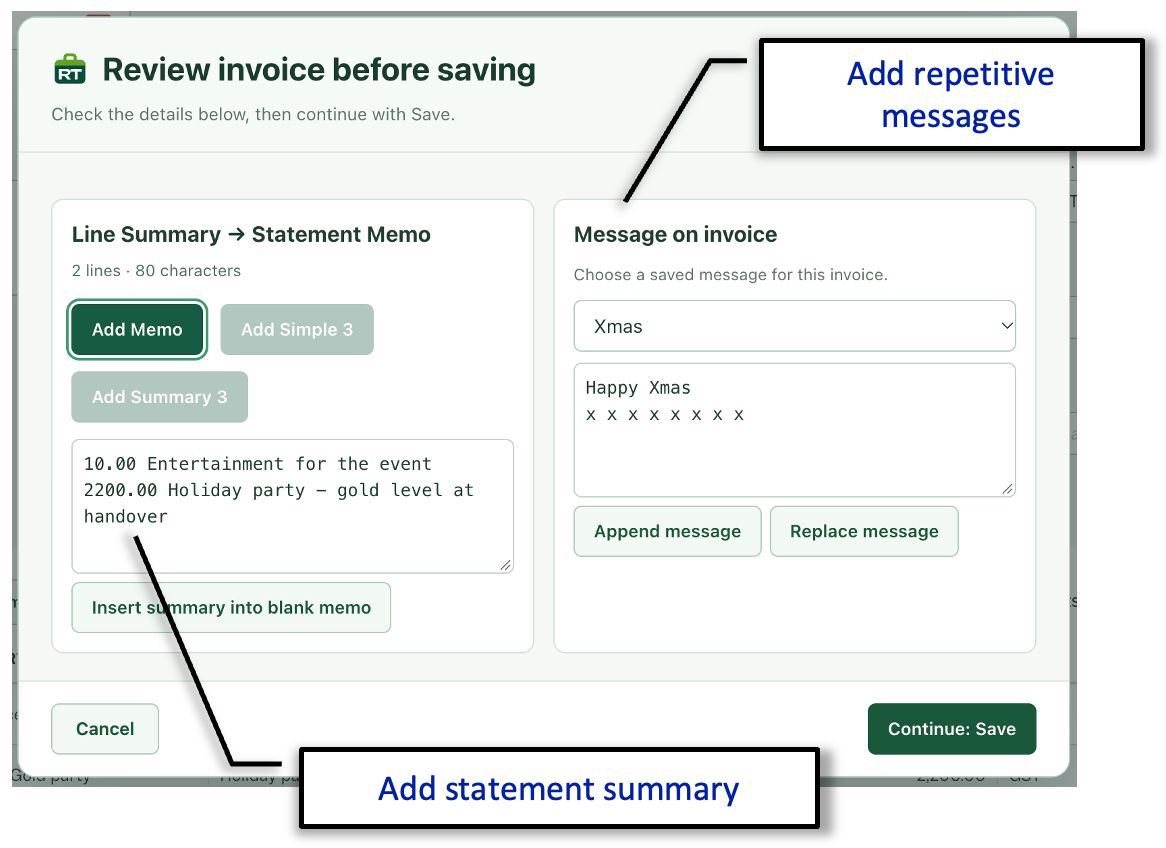
The transaction review pop-up presents the key information for the transaction before it is committed. This makes it easier to check the important details without scanning the entire entry screen again.
For fields that must always be completed, RachelsTools can make the review step part of the workflow rather than relying on memory.
Review key fields
See the important transaction information together before saving.
Require information
Choose fields that must be completed before the transaction can be committed.
Reduce corrections
Find omissions earlier and avoid returning to the transaction to repair preventable mistakes.
Quickly access transactions
Fewer steps between the ledger and the work.
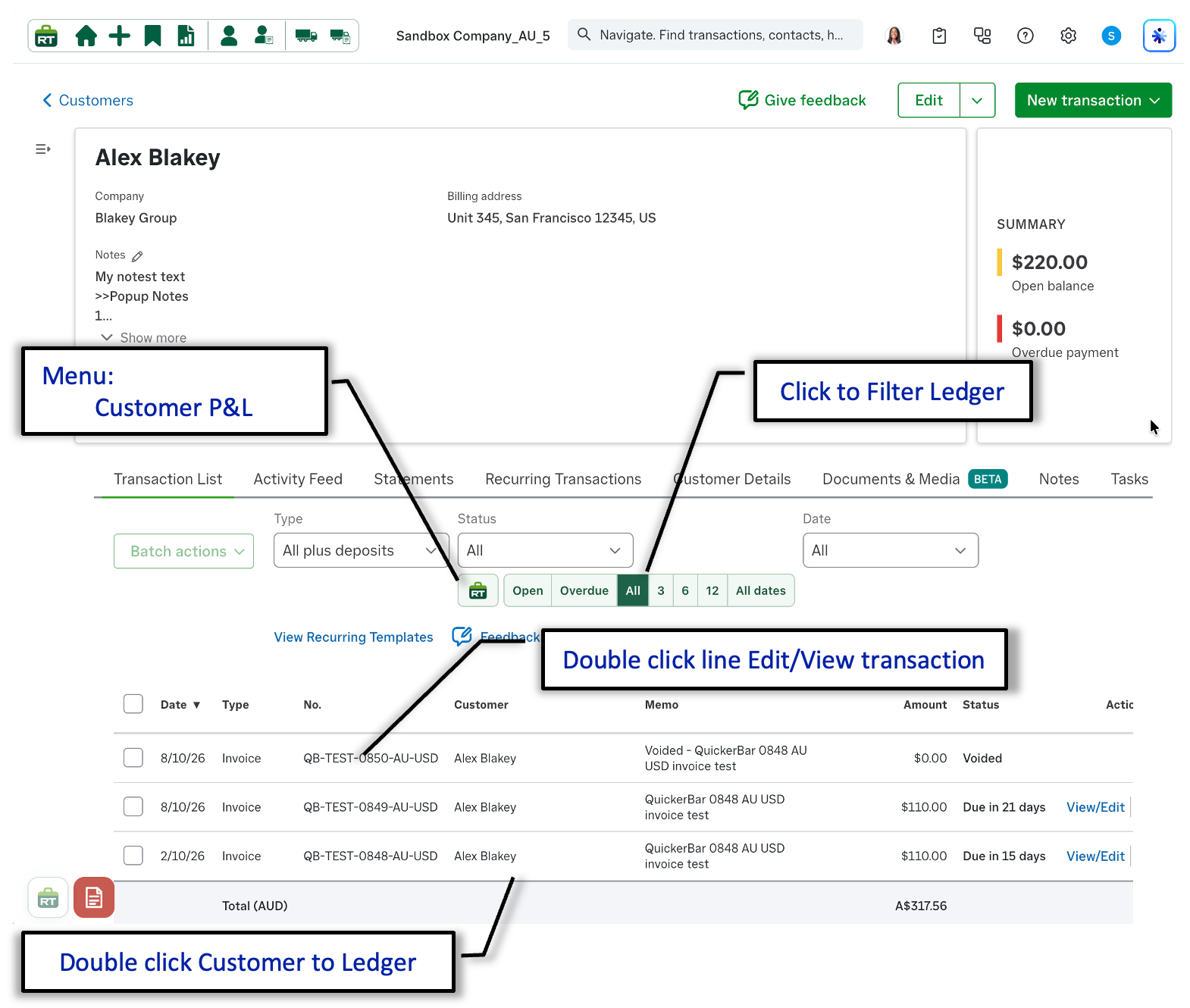
RachelsTools adds shortcuts around customer and supplier ledgers so you can filter, inspect and open the underlying accounting records more directly.
Filter the ledger
Switch between open, overdue or all transactions, or restrict the list to a recent 3, 6 or 12-month period.
Edit or view
Double-click a transaction line to open it without first locating the separate View/Edit link.
Open the ledger
Double-click a customer or supplier reference to move directly to the relevant ledger.
Customer P&L
Use the RachelsTools menu to move directly to customer-focused profit and loss reporting.
Also on expenses
The same shortcuts on supplier and expense ledgers.
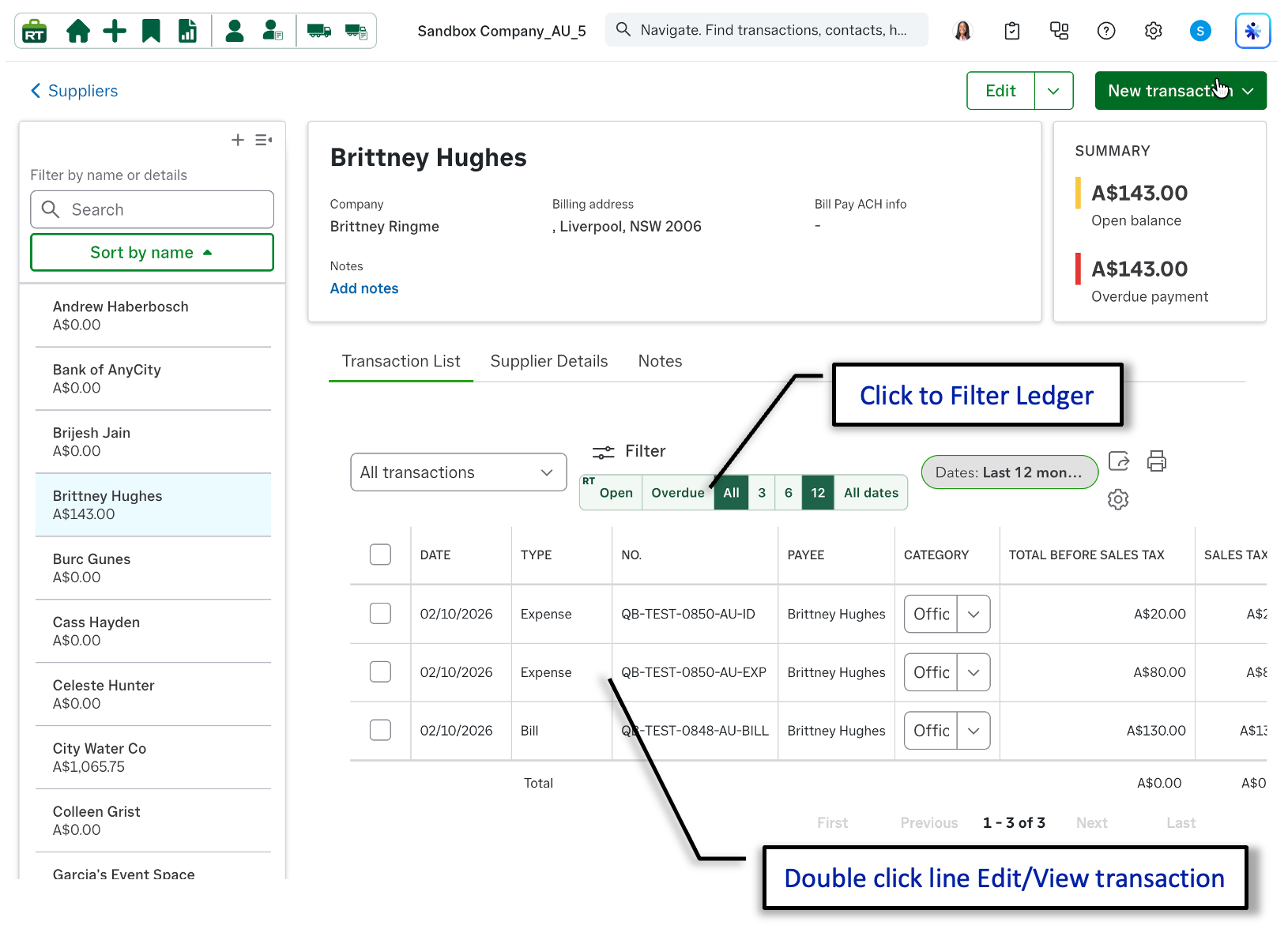
RachelsTools brings the faster ledger controls to supplier records as well as customer accounts, keeping the interaction consistent across sales and expense work.
- Filter the supplier ledger to open, overdue or all transactions.
- Limit the list to the last 3, 6 or 12 months, or show all dates.
- Double-click an expense or bill line to open it for viewing or editing.
- Continue using the standard QuickBooks transaction and date filters alongside the RachelsTools controls.
Save before void
Preserve the transaction details before they disappear.
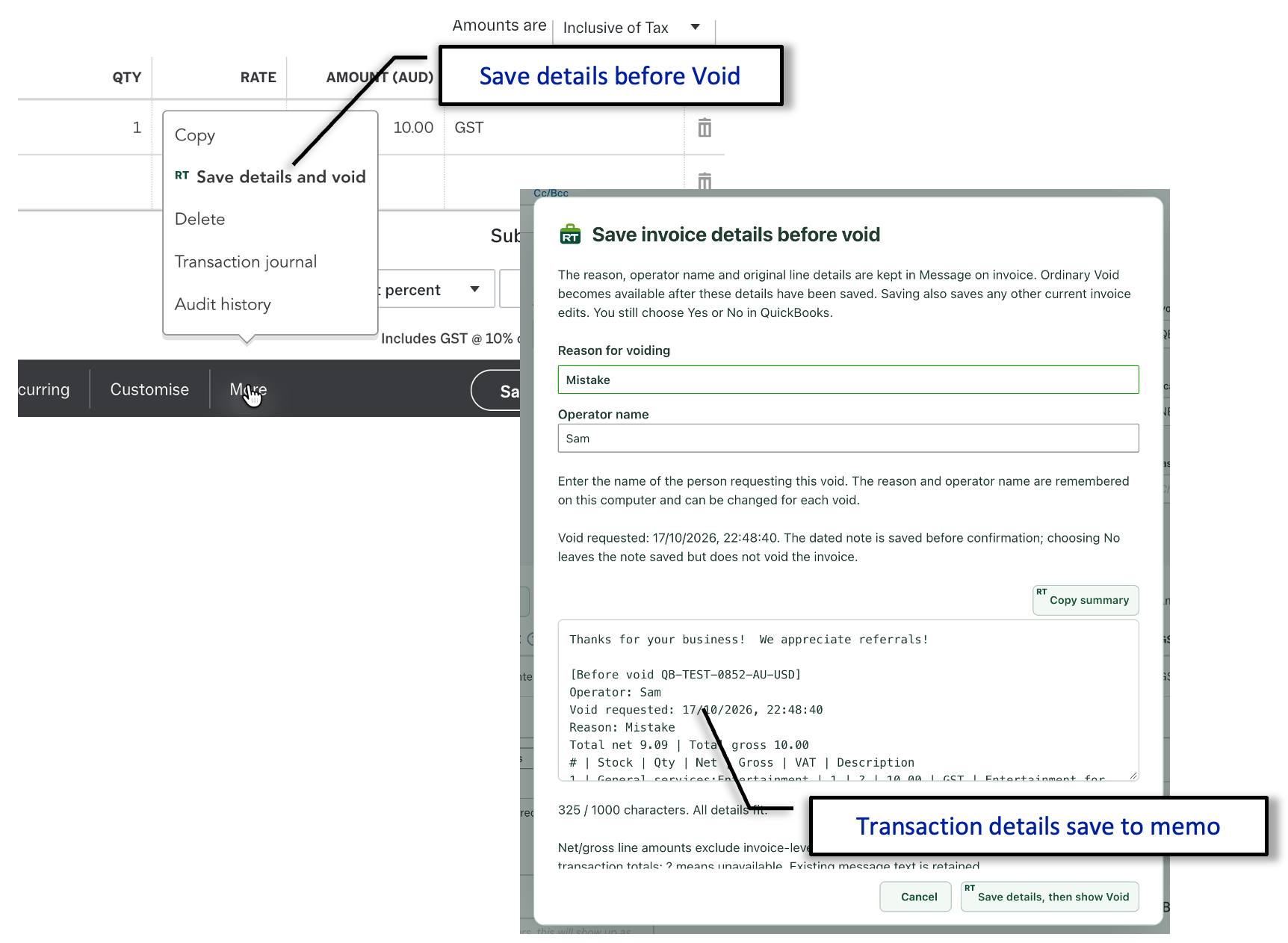
The RachelsTools “Save details and void” action records useful context in the invoice memo before continuing to the normal QuickBooks void confirmation.
- Record the reason for the void and the operator requesting it.
- Add a dated note containing the original transaction and line details.
- Copy the generated summary when it is useful elsewhere.
- Continue to the standard QuickBooks Yes or No void decision after the information has been saved.
If the operator chooses not to complete the void, the saved note remains as an audit record of the request.
Ledger, notes and credit position
See the customer context without leaving the transaction.
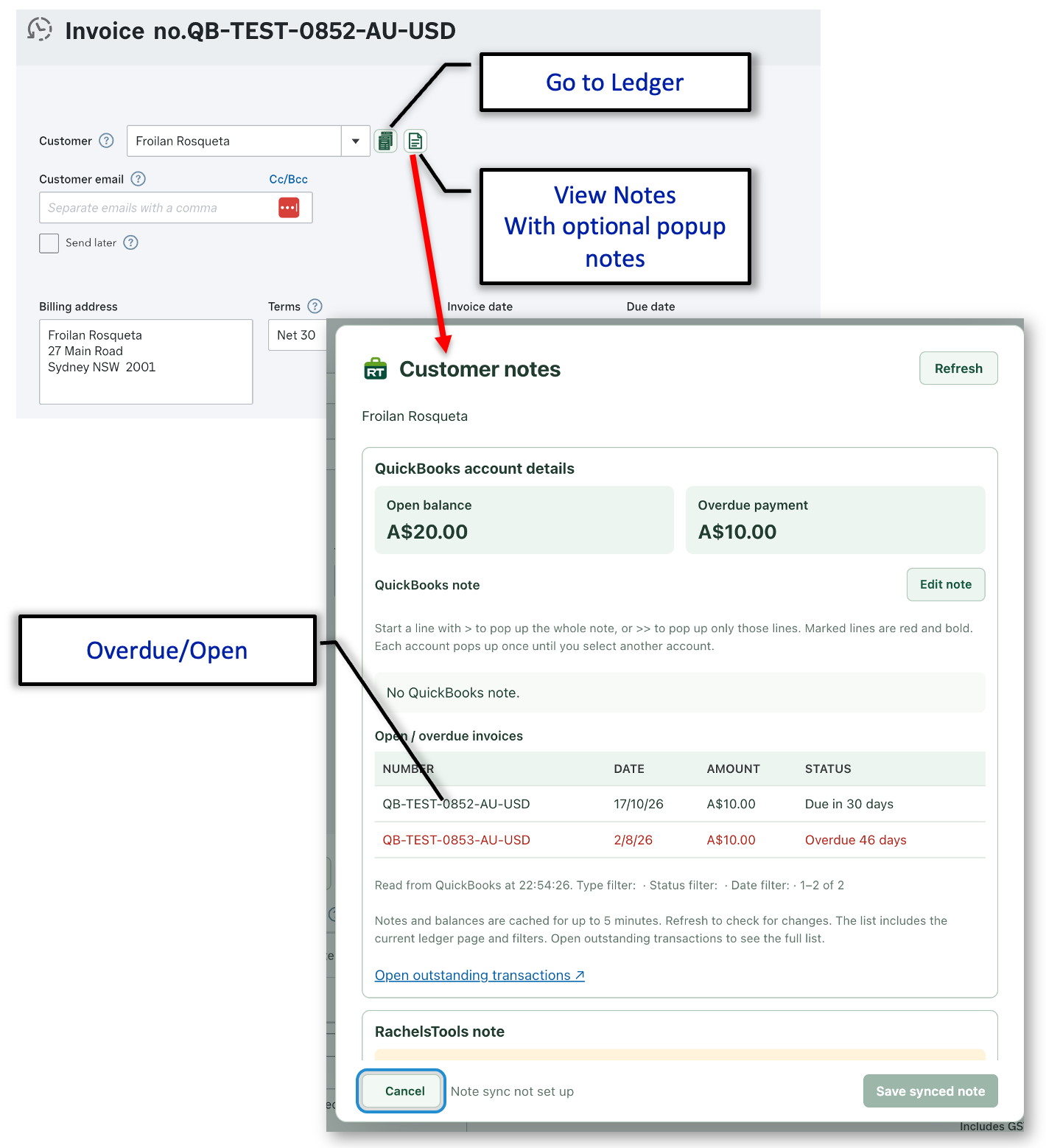
Additional controls beside the customer field make it possible to open the ledger or review the customer’s notes and outstanding position while the invoice remains in front of you.
- Go directly to the selected customer’s ledger.
- View QuickBooks and RachelsTools notes from the transaction.
- Optionally display marked note lines as a pop-up warning.
- See the current open balance and overdue payment total.
- Review open and overdue invoices, with overdue items clearly highlighted.
- Open the complete outstanding-transactions list when more detail is needed.
Automatic note reminders
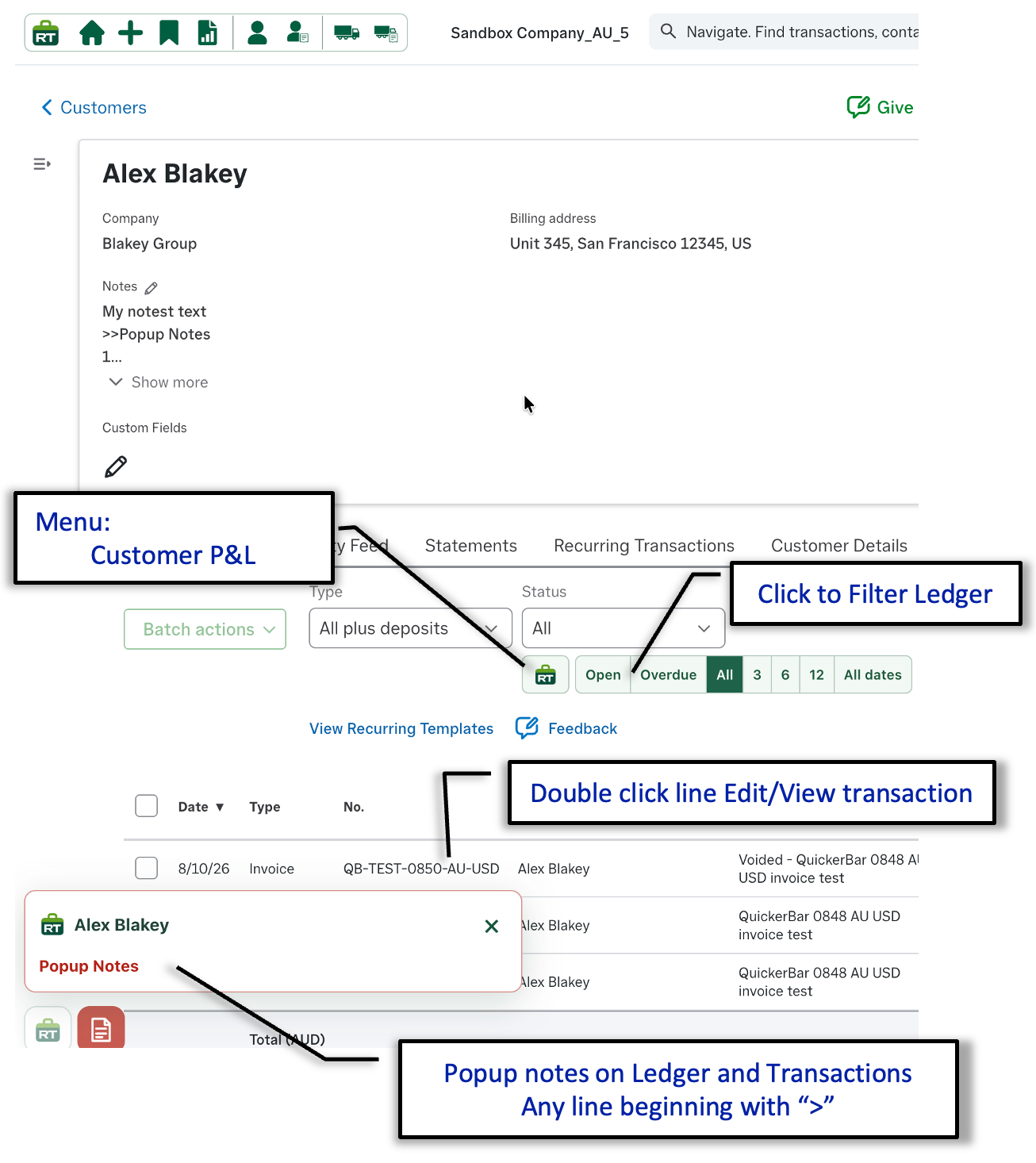
Show important notes on ledgers and transactions.
Mark a note line with > and RachelsTools displays it as a pop-up when the customer or supplier is opened. The reminder appears where the work is happening, so important instructions are harder to overlook.
- Display marked customer or supplier notes on the ledger.
- Show the same warning while working with related transactions.
- Use individual note lines for concise, relevant reminders.
- Close the pop-up after it has been read and continue working.