
Feature 19 · Credit warnings
See the customer’s position before adding more work.
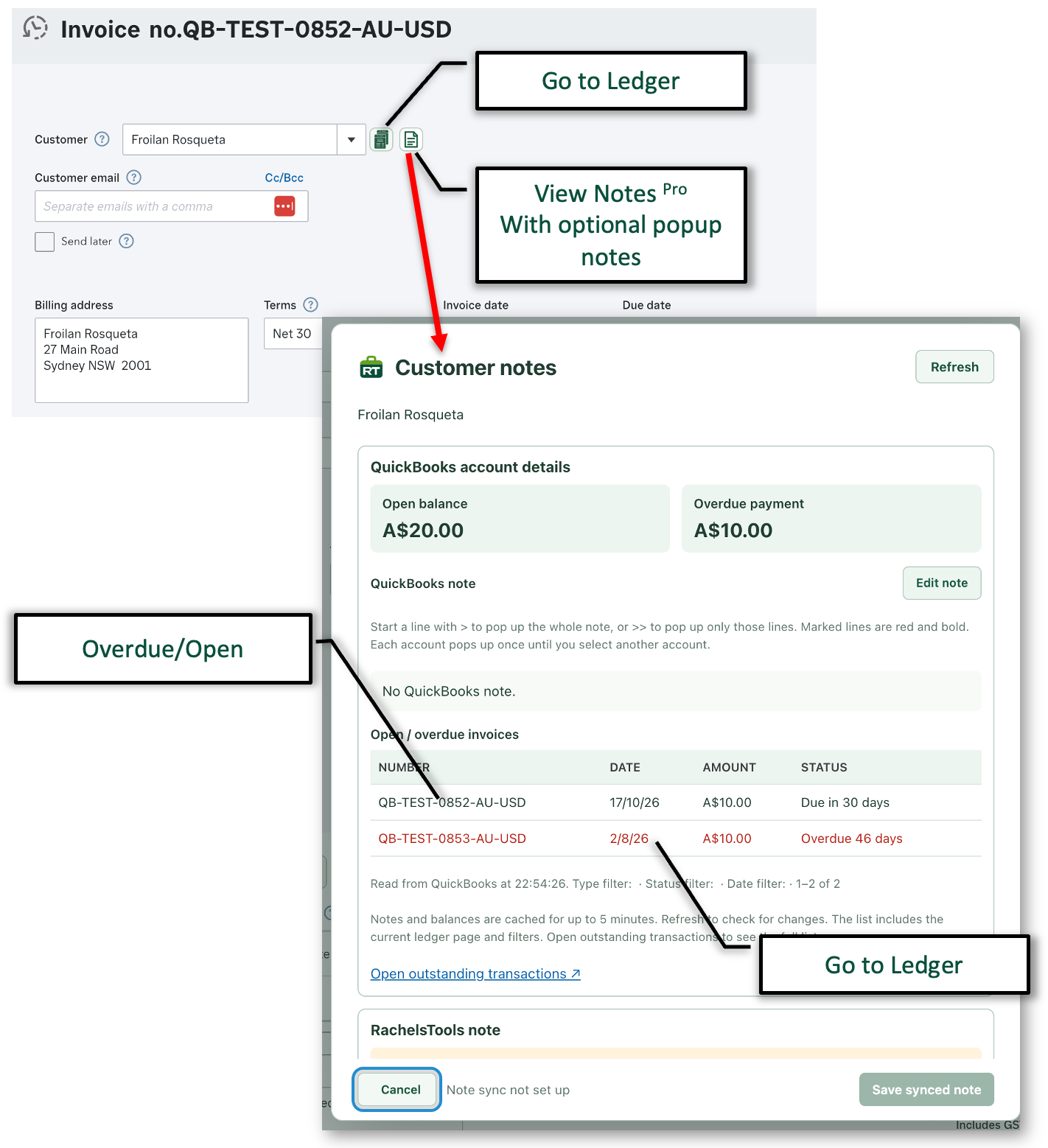
Display outstanding transactions while a transaction is being added or edited, so open and overdue balances can be considered before the entry is completed.
- Show the customer’s current open and overdue totals.
- Review individual outstanding transactions without leaving the entry.
- Keep credit context beside the transaction instead of checking a separate ledger.
Feature 7 · Ledger shortcut
Open the related ledger without retracing your route.
An additional control beside the customer or supplier opens the relevant ledger directly while the transaction remains the starting point.
- Open the selected customer or supplier ledger in one step.
- Keep the relationship between the transaction and its account clear.
- Use the shortcut in both Xero and QuickBooks workflows.
Feature 8 · Pop-up notes
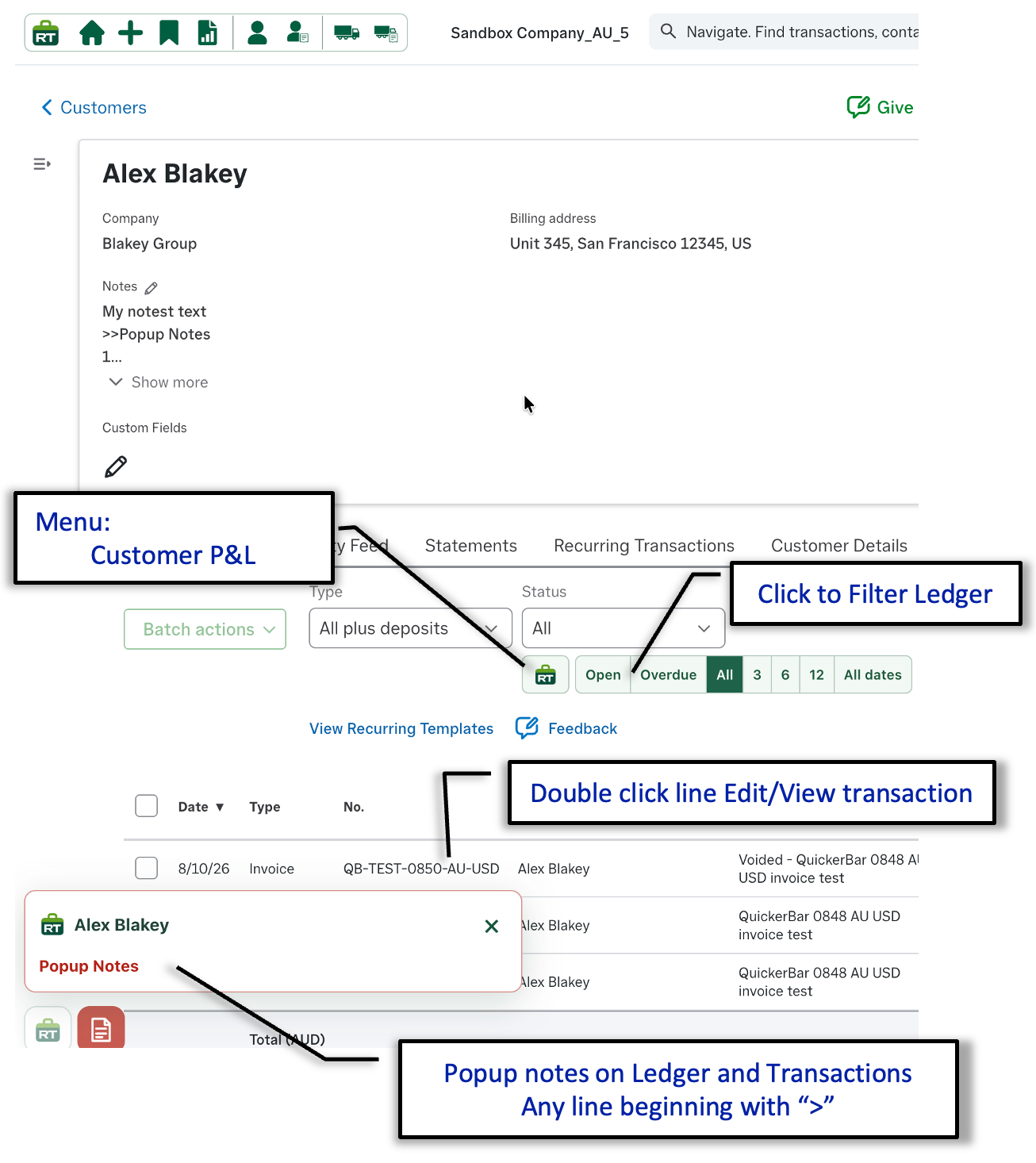
Put important customer and supplier notes in view.
Mark important note lines so RachelsTools can show them as a warning when the related customer, supplier or transaction is opened.
- Show marked notes automatically during transaction work.
- Keep reminders concise by selecting only the relevant lines.
- Close the warning and continue without leaving the transaction.
Feature 9 · Transaction review
Catch missing information before the transaction is committed.
The review pop-up brings the important fields together for one final check and can require selected information to be completed before saving.
Review key fields
See the important transaction information together before saving.
Require information
Choose fields that must be completed before the transaction can be committed.
Reduce corrections
Find omissions while they are still easy to correct.
Feature 11 · Duplicate a line
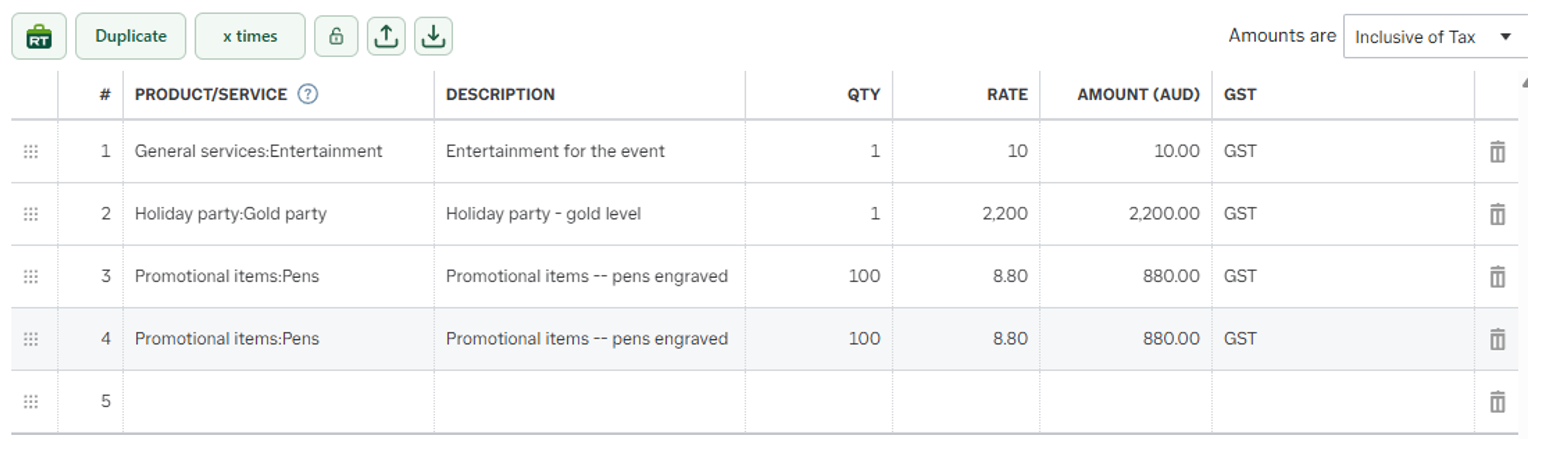
Repeat a transaction line without re-entering it.
Select a line, choose how many copies you need and place them directly beneath the original, ready for the next edit.
- Keep the product, description, quantity, rate and tax detail.
- Create one or several copies in the same action.
- Edit only the values that change.
Feature 10 · Statement memo
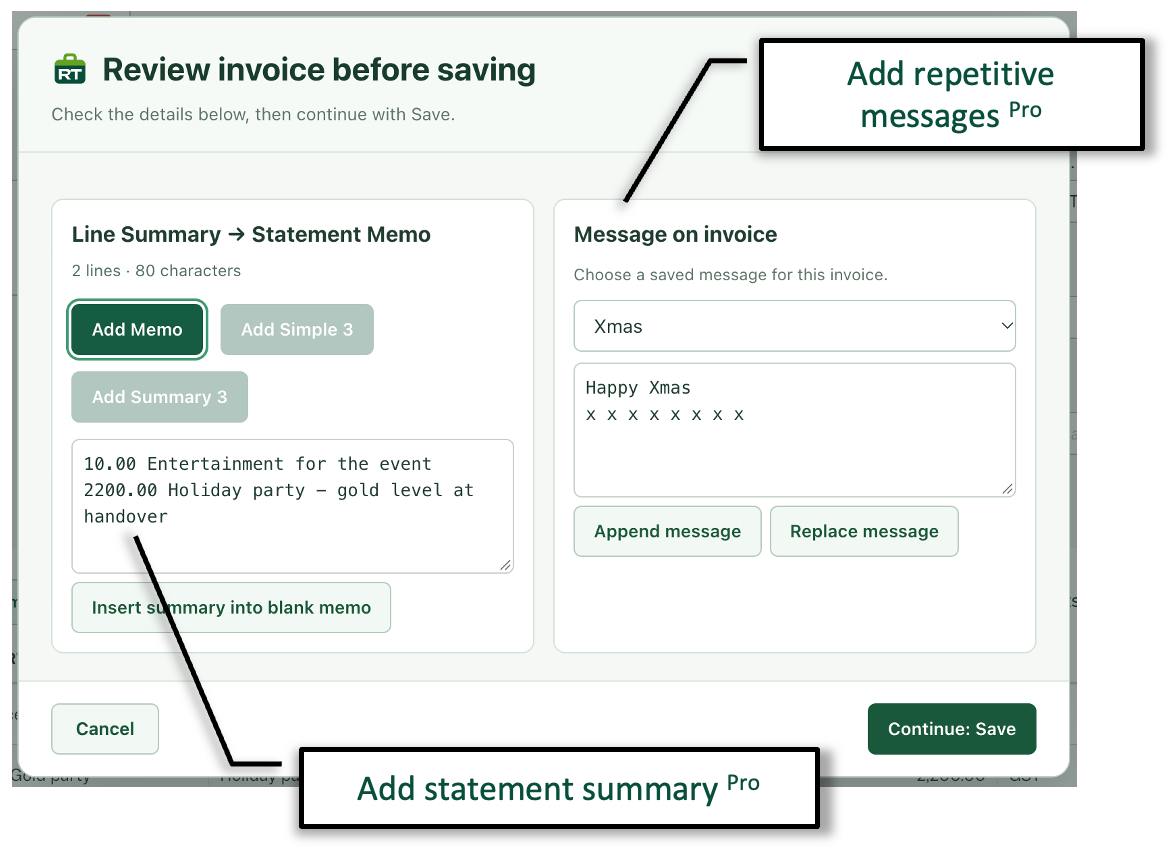
Build a useful statement memo from the transaction lines.
Turn the line descriptions and values into a concise statement summary, then add saved wording without retyping messages used repeatedly.
- Create the memo from the actual line detail.
- Choose a saved summary format.
- Append or replace reusable customer-facing wording.
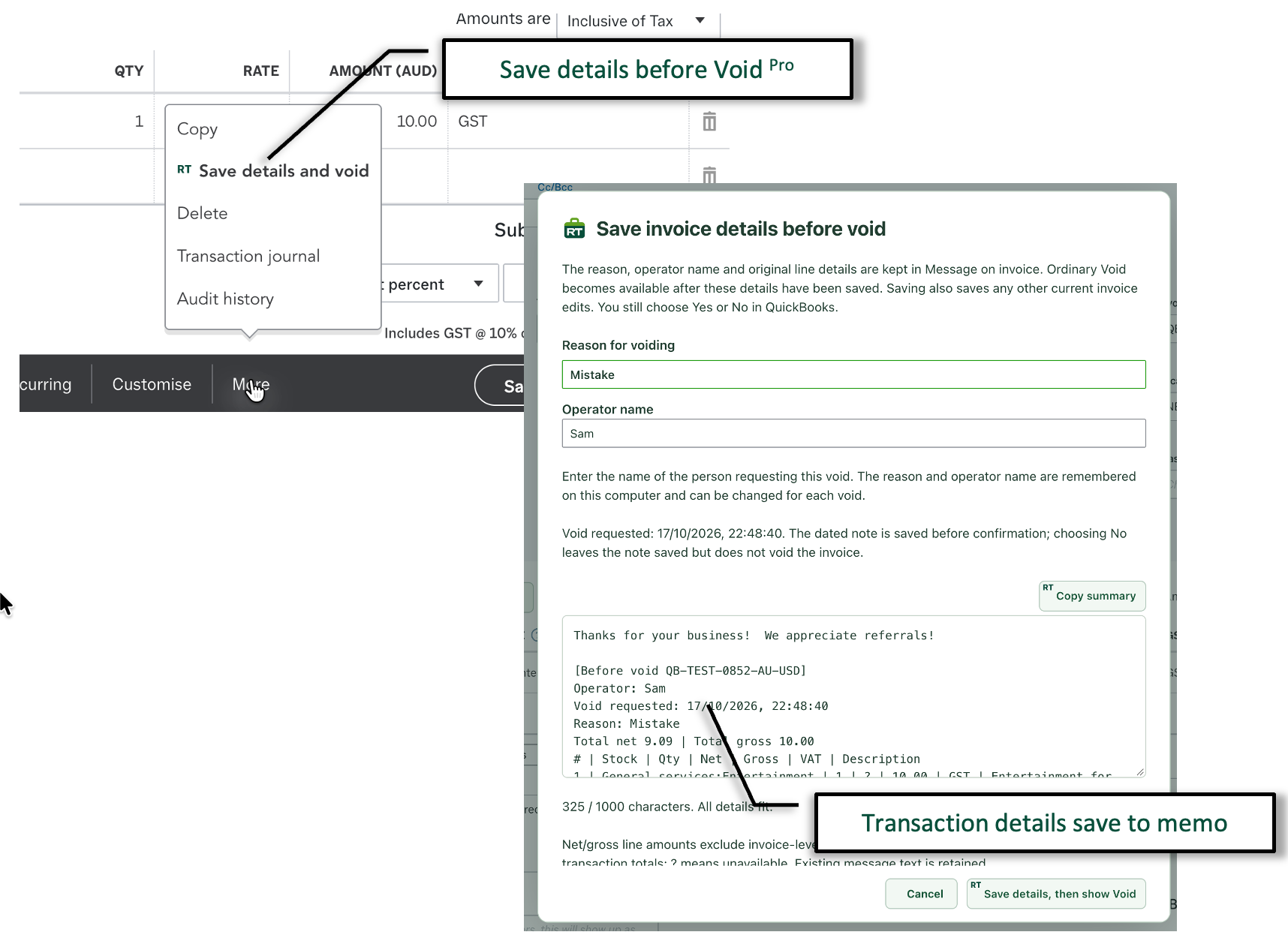
Feature 24 · VOID memo
Preserve the transaction evidence before the values are cleared.
Save the reason and a summary of every transaction line to the memo before continuing to the normal QuickBooks void confirmation.
- Retain each line’s quantity, description and value.
- Record the reason and date of the void request.
- Keep the note even if the operator does not complete the void.
More transaction-entry controls
Small safeguards for the details that matter.
Feature 18
Lock – change a stock code
Change the stock code without replacing the existing line description or price.
Feature 21
Email a copy to yourself
Send the transaction to your inbox, the customer or both from the same workflow.
Feature 42
Journal entry balance
Keep the journal out-of-balance figure visible while the journal is being entered.