
Find the right match in less time
Search the useful part
Highlight just the invoice number or payment code and send it straight to QuickBooks search.
Find older transactions
Look further back for an invoice, bill or payment while keeping the other filters in place.
Check before you match
Review the payee, reference, selected amount and difference before confirming in QuickBooks.
Watch QuickBooks bank matching in action
The reference search starts at 2:00 and the Older shortcut starts at 1:10. You’ll need RachelsTools Pro in Google Chrome.
Search the useful part of the bank reference
Open Bank transactions in QuickBooks Online. Select the bank-feed item and open Find other matches.
In the RachelsTools Bank Reference box, highlight the invoice number, payment code or other useful text. Select Highlight and search by ref to put the selected text in the QuickBooks search field.
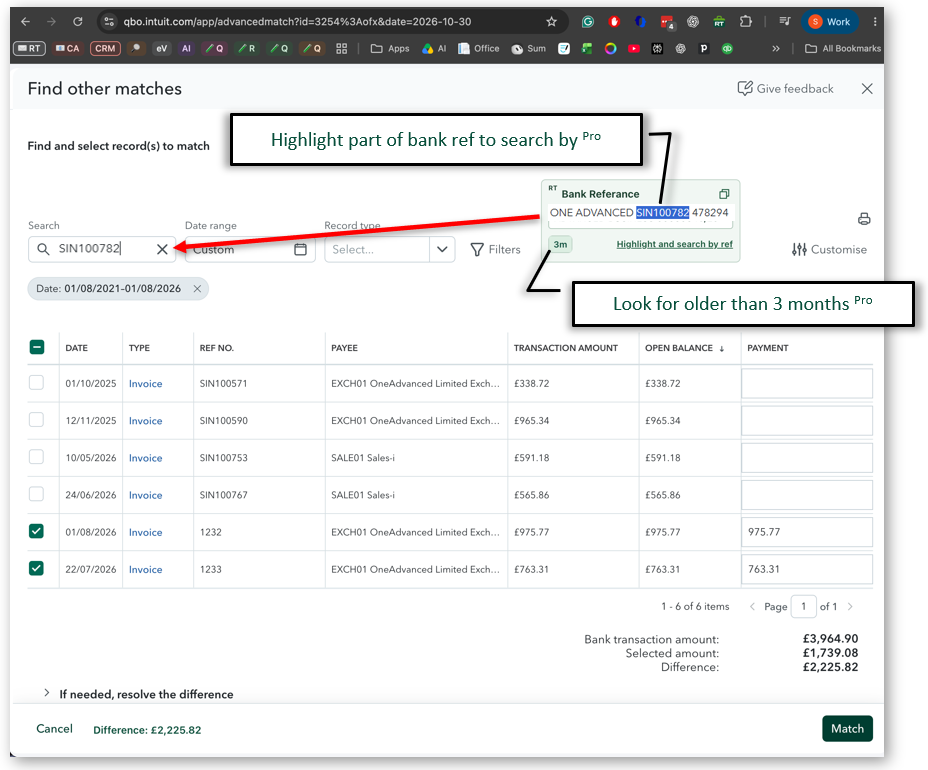
Highlight the invoice number in the bank reference and send it to QuickBooks search. Look for older matches
If the item is outside the current date range, make sure the filter has a start date and select Older. RachelsTools searches from five years before that start date through the start date itself.
Your other matching filters stay in place, so you can review earlier results without setting up your search again.
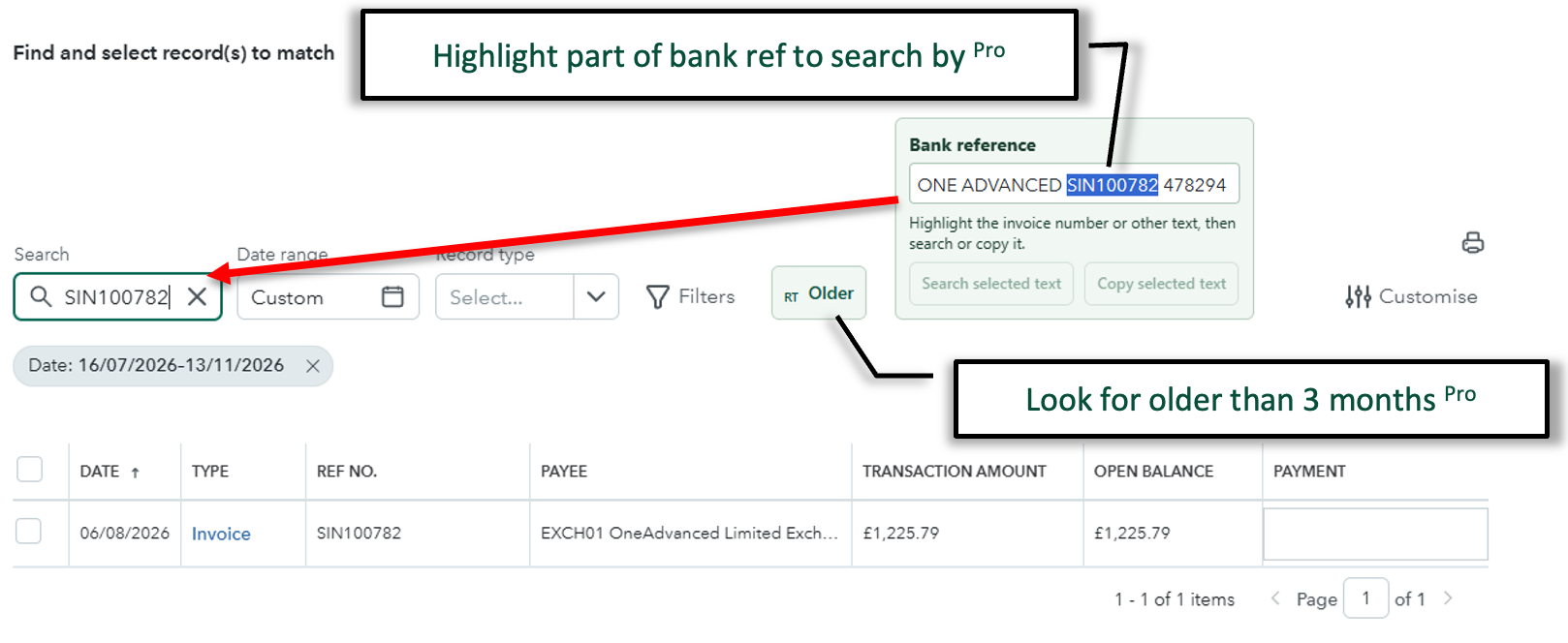
Select Older beside the QuickBooks matching filters to look further back. Review the result before matching
Select the record or records that belong to the payment. Check the payee and reference, then compare the selected amount and Difference with the bank transaction.
When you’ve verified the result, use QuickBooks’ Match button to confirm it.
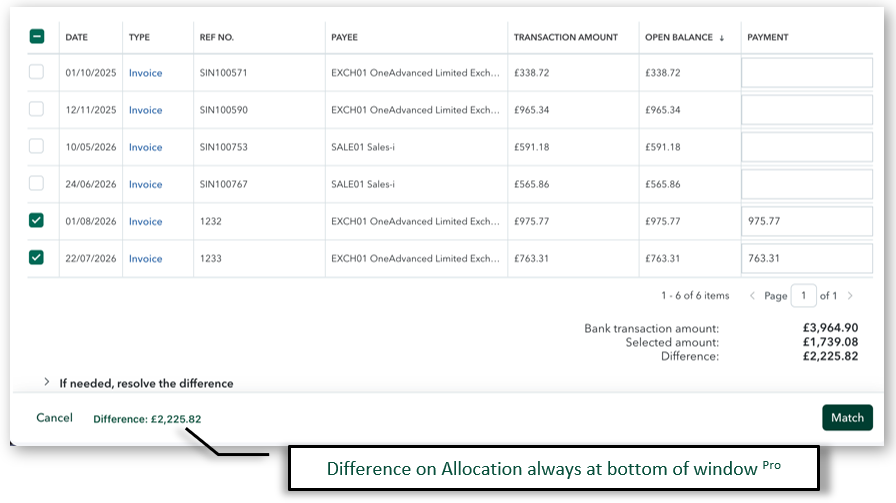
Check the selected amount and Difference before confirming the match.