
Send invoice PDFs in less time
Download in one go
Select the invoices you need and save a separate PDF for each in one batch.
Give PDFs clear filenames
Use details like the customer name or due date so each attachment is easy to recognise.
Paste a professional invoice table
Copy a neatly formatted table of the invoices straight into your email.
Watch the QuickBooks invoice PDF workflow
See how to select, name and download a batch of invoices. You’ll need RachelsTools Pro in Google Chrome.
Select the invoices and name the PDFs
Open the customer’s Transaction List in QuickBooks Online and tick the invoices you want. Open Customer tools from the RachelsTools button and select Download selected PDFs.
Under Include in filenames, choose the details you need, such as the display name or due date. Check the suggested filenames, then select the download button. It shows how many PDFs are in the batch.
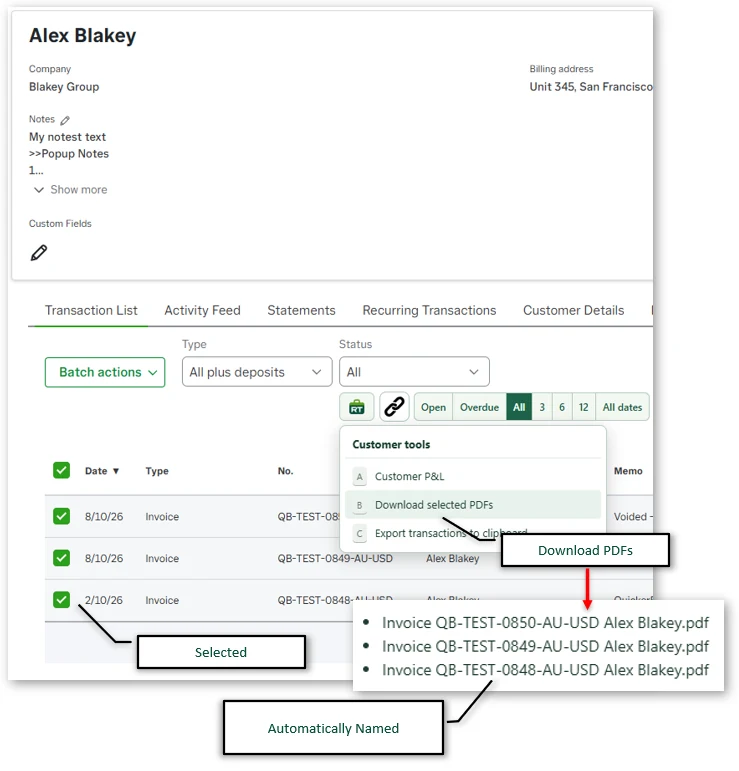
Select the invoices on the customer’s transaction list and open Download selected PDFs. Copy the email draft with its invoice table
In Email draft, write an introduction or choose a saved template. Select Add Comment Column if you want room for notes against each invoice.
The table lists invoices whose PDF downloads started. Review the table, then select Copy email draft.
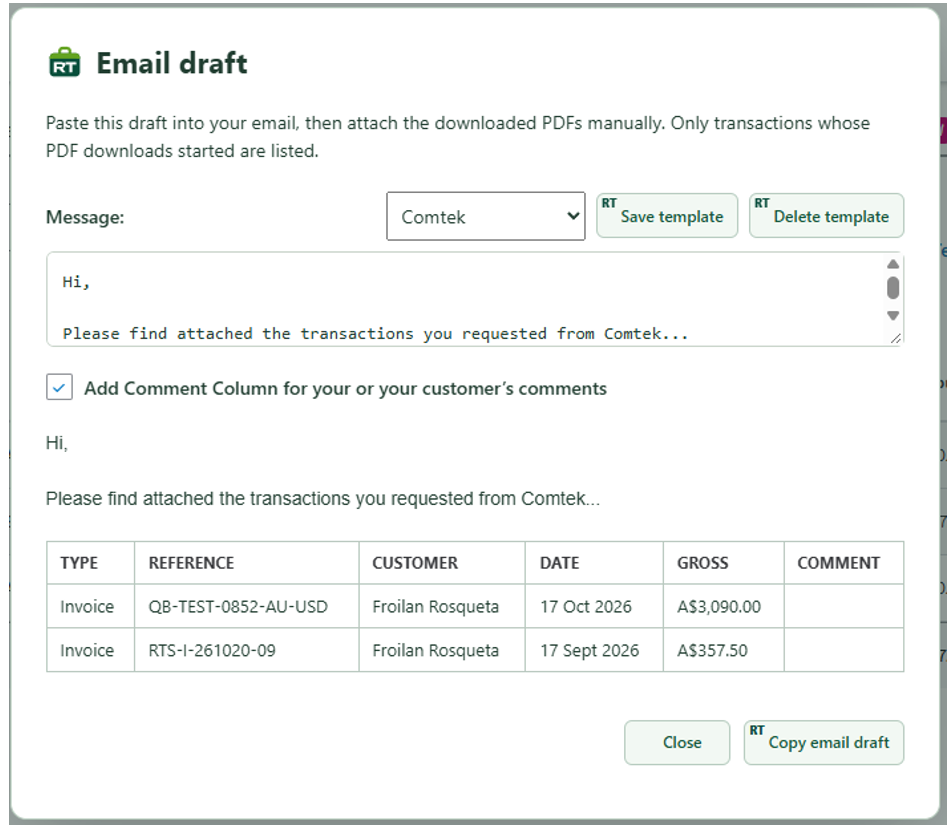
Review the invoice table and copy it with a message or saved template. Paste the draft and attach the PDFs
Paste the draft into a new email. Check that the PDFs have finished downloading, then attach them manually. Check the attachments against the invoice table before you send.
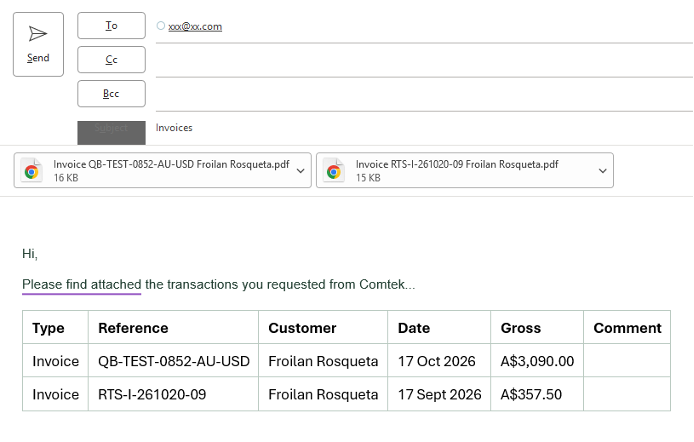
Paste the draft into your email and attach the downloaded invoices.