
Edit repeated wording in one pass
Change a phrase across lines
Update a job reference, project name or service description wherever it appears in the current invoice.
Review each change
Compare the old and new descriptions and clear the checkbox beside any line you want to keep.
Keep the line values
RachelsTools edits the description field and preserves the item, quantity, price and tax.
Watch find and replace in QuickBooks Online
Open the tool at 0:27, follow the replacement example from 0:38 and see it applied at 0:55. You’ll need RachelsTools Pro in Google Chrome.
Open Find and replace in lines
Open an editable invoice in QuickBooks Online and let its lines load. Select the RT button above the invoice lines to open Transaction tools, then choose Find and replace in lines (Pro).
If Lock line fields is on, unlock the fields before opening the tool.
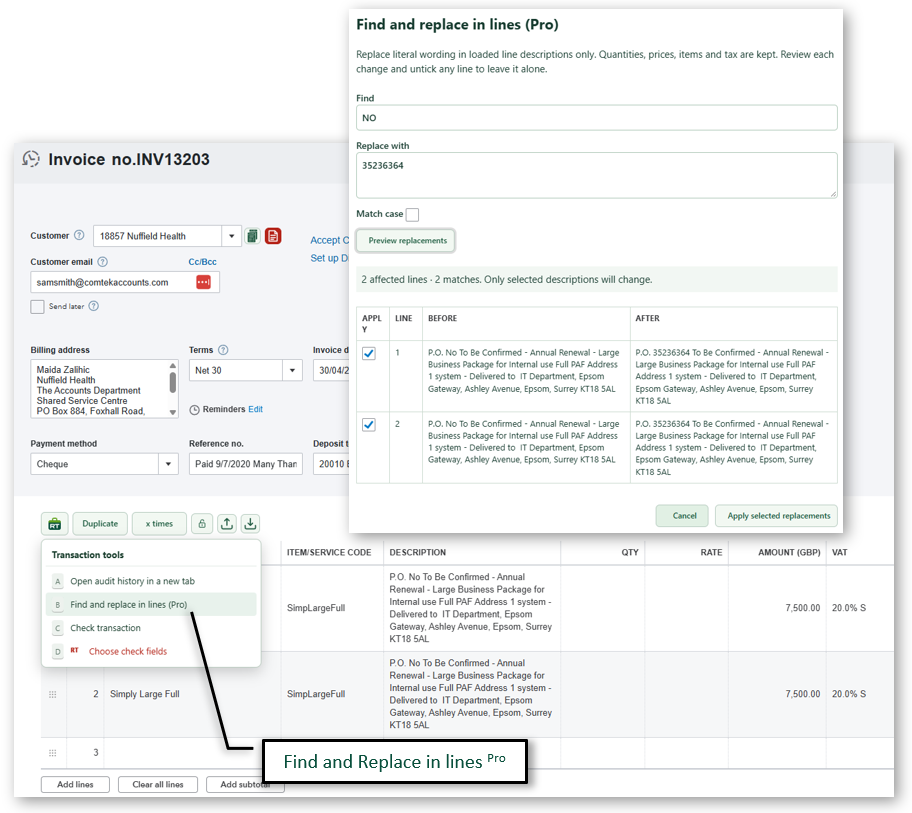
Review the Before and After columns for each affected QuickBooks invoice line. Enter the wording and preview the changes
Put the old text in Find and the new text in Replace with. Turn on Match case if the capitalisation matters, then select Preview replacements.
Use a specific phrase or reference if the same word appears elsewhere in a description. Check the highlighted text in the Before and After columns.
Example of updating a job reference Before After Installation for JOB-104 Installation for JOB-204 Materials for JOB-104 Materials for JOB-204 Apply the selected replacements
Untick any line you want to leave as it is. Select Apply selected replacements, wait for the update to finish, then review the descriptions on the invoice.