
See the reminder while it still matters
Catch special instructions early
Give the person entering an invoice a visible reminder to check a discount, delivery charge or purchase order number.
Show just what’s needed
Pop up the key reminder on its own or show it with the rest of the contact note.
Open the full note from the invoice
Use the notes button to review the saved instructions and available balances while you work.
See the Xero warning in action
The tutorial opens customer notes at 0:17 and shows a red pop-up reminder at 0:37. You’ll need RachelsTools Pro in Google Chrome.
Open the contact’s note in Xero
From a supported invoice or bill, open the RachelsTools Notes panel and select Edit note in Xero. You can also open the customer or supplier from Contacts in Xero.
Find the contact’s Notes field and add the reminder on its own line. Keep the wording short enough to scan while entering the transaction.
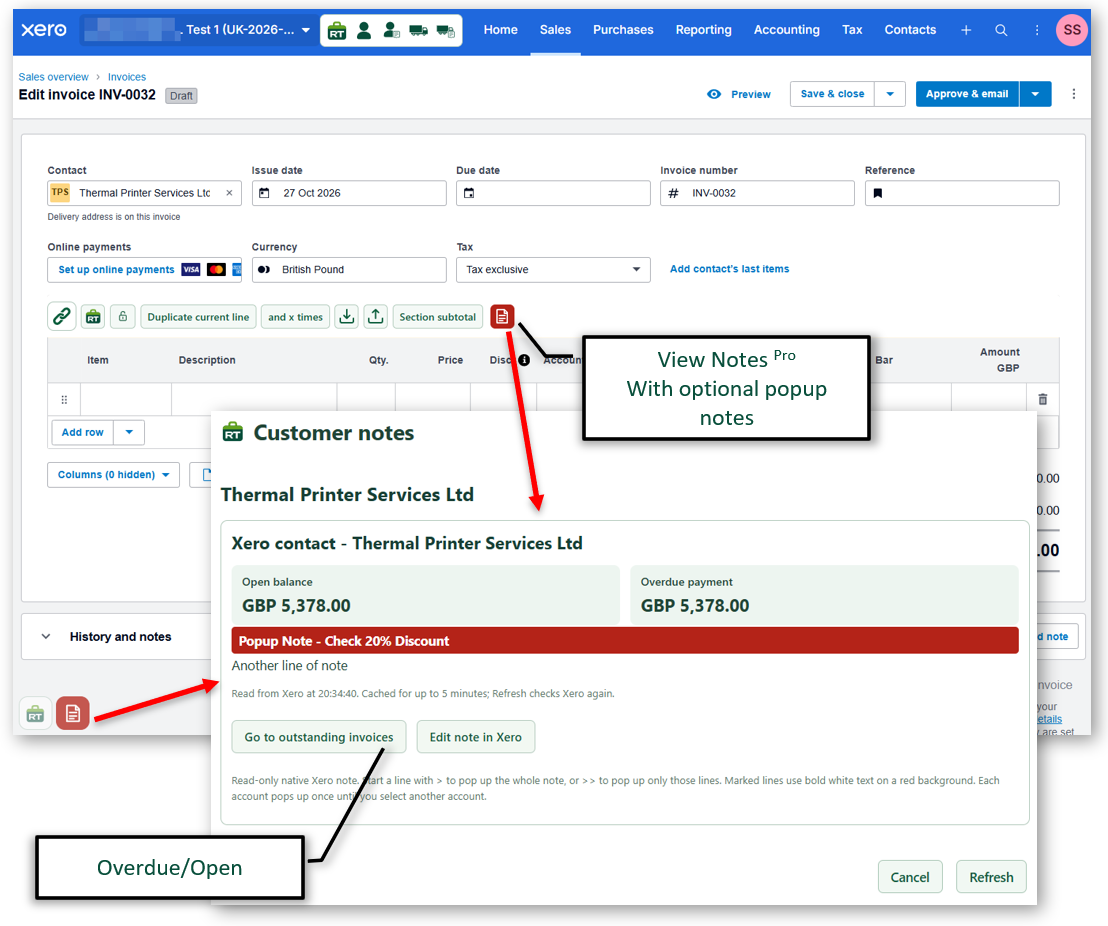
Use the notes button during invoice entry to review the saved note or open it for editing in Xero. Mark the line you want to pop up
Start the line with
>to display the whole note, or use>>to display only lines marked for the pop-up. Put the marker at the very start of the line. RachelsTools highlights marked lines in red.Save the contact note in Xero.
Show the whole note
>Confirm delivery charge before invoicing.
Use the North entrance for deliveries.
Show only the marked line
>>Confirm delivery charge before invoicing.
Use the North entrance for deliveries.
Check the warning on an invoice or bill
Select the contact on a supported transaction and look for the reminder at the bottom left. If you’ve just edited the note, select Refresh in the notes panel to fetch the latest version.
The reminder appears once per contact selection. To see it again, dismiss the panel, select another contact, then reselect the original contact. Open the Notes button whenever you need the full note.
Example pop-up using the >>markerNorthstar OfficeConfirm delivery charge before invoicing.