
Make long invoices easier to read
Group related charges
Show customers what they’re paying for in each section, from labour and materials to separate phases of a job.
Put subtotals in context
Show each subtotal right below the item lines it covers, with wording that makes sense for your invoice.
Refresh the amounts after edits
Preview the recalculated subtotals together after changing quantities or prices.
Watch how to add a subtotal in Xero
Add the blank subtotal line at 0:21, apply the subtotal at 0:39 and refresh it after edits at 1:23. You’ll need RachelsTools Pro in Google Chrome.
Add a blank line below the section
In an editable Xero invoice, group the related item lines together. Insert a blank line immediately below them and leave the item, quantity and price fields empty.
Click the blank line, then select Section subtotal in the RachelsTools line toolbar. If the button is hidden, enable Section subtotal helper in RachelsTools’ Xero transaction settings.
Example invoice lines Description Line amount Cable £60.00 Fittings £30.00 Blank line for the materials subtotal Choose a label and apply the subtotal
Pick Labour, Materials or Other, or enter your own label with Custom wording. By default, the helper totals the lines above the blank row back to the last subtotal or the top of the invoice. Adjust the first and last lines if needed.
Check the preview and select Apply. The subtotal appears in the Description field. Xero still calculates the invoice total from your item lines.
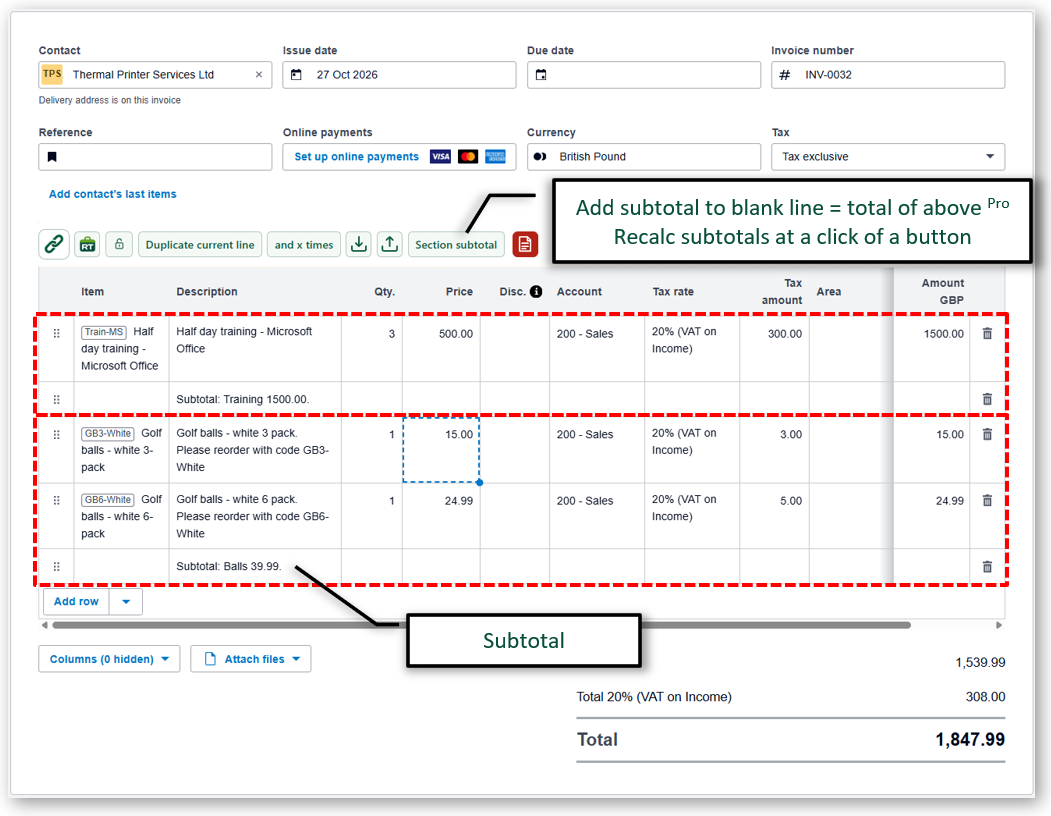
Each section ends with its own subtotal in the Description column. Recalculate after changing an item line
To check the subtotals before saving, select an existing subtotal and open Section subtotal again. Review the old and recalculated amounts, then select Apply all subtotal updates.
If you edit the description yourself, keep Subtotal: at the start and the amount at the end so RachelsTools can find and update the line.
After changing the cable price Line Before After Cable £60.00 £80.00 Fittings £30.00 £30.00 Materials subtotal £90.00 £110.00